
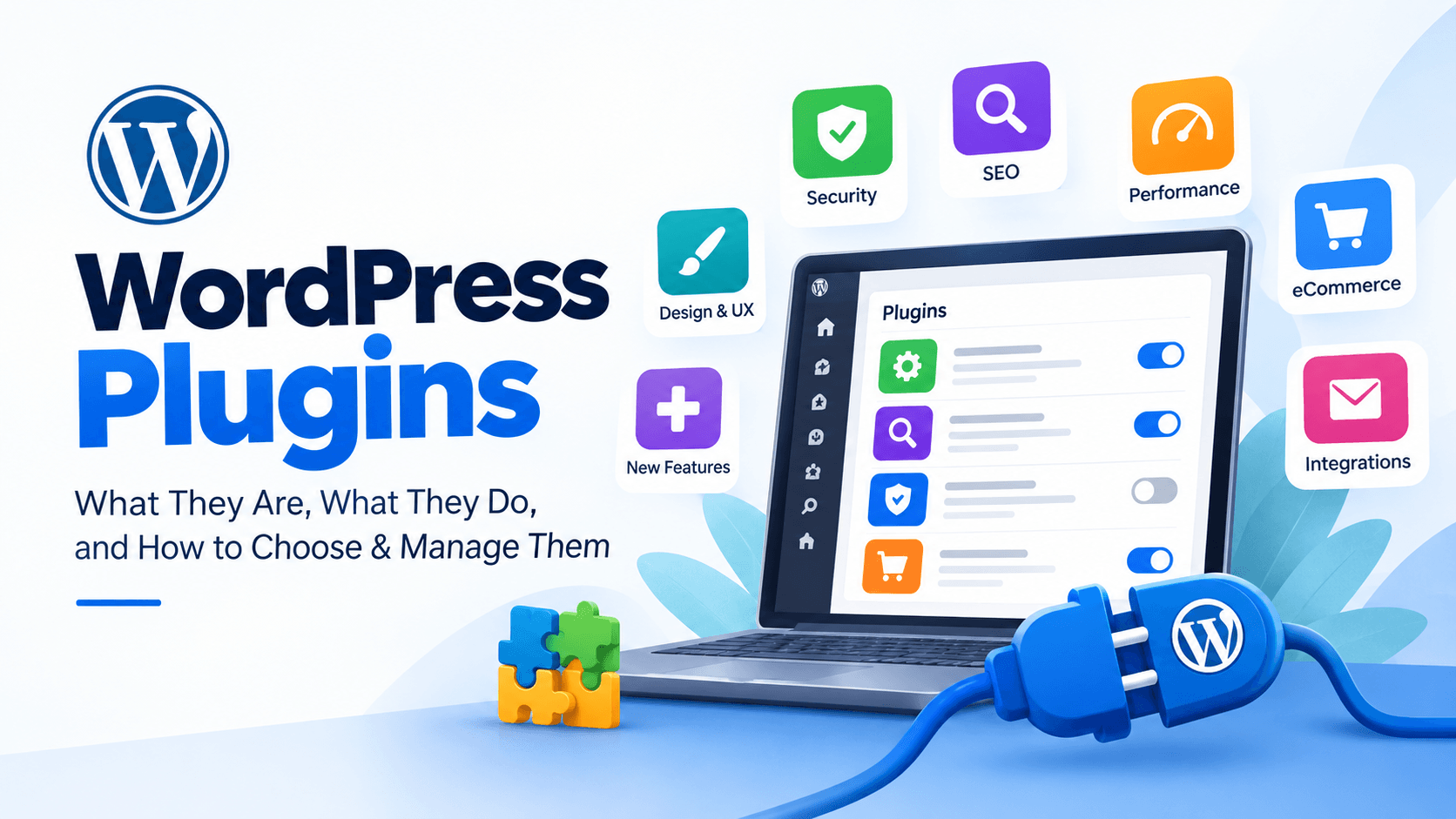
WordPress plugins are one of the main reasons WordPress can be used to build so many different types of websites. A plugin can add a specific feature, connect a website to another service, improve security, optimize performance, or extend WordPress far beyond its default functionality.
Whether you run a business website, blog, online store, portfolio, membership site, or another type of WordPress website, there is likely a plugin designed for your needs.
However, installing a plugin is not simply about finding one that offers the features you want. Plugin quality, security, compatibility, performance, updates, support, and maintenance can all affect your website.
This WordPress Plugins Guide explains what WordPress plugins are, what they can do, how to choose and manage them, and what to consider before installing one.
WordPress Plugins Guide: What Are WordPress Plugins?
What Is a WordPress Plugin?
A WordPress plugin is software that extends the functionality of a WordPress website. Instead of modifying WordPress core files to add a feature, you can install a plugin that provides the required functionality.
For example, a basic WordPress installation does not include a complete contact form builder, advanced SEO tools, an online store system, or a comprehensive backup system. Plugins can add these features without requiring you to build them from scratch.
Plugins can be small and focused on one task or large systems that provide many features.
How Do WordPress Plugins Work?
WordPress plugins are generally written in PHP and use WordPress’s built-in APIs and hooks to interact with the website.
When a plugin is activated, WordPress loads its code and allows it to add or modify functionality. Depending on the plugin, it may also add settings pages, database tables, custom post types, blocks, shortcodes, widgets, or integrations with external services.
The exact impact of a plugin depends on how it is developed. A well-built plugin can add useful functionality with relatively little overhead, while poorly optimized code can create performance or compatibility problems.
Why Are Plugins Important in WordPress?
Plugins make WordPress flexible and extensible.
Instead of developing every feature yourself, you can use existing software to add functionality to a website. This can reduce development time and make advanced features accessible to people who do not have extensive programming experience.
At the same time, plugins become part of your website’s technical stack. Choosing reliable plugins and keeping them maintained is therefore an important part of WordPress management.
What Can WordPress Plugins Do?
Add New Features to a Website
Plugins can introduce features that are not available in WordPress by default.
Examples include:
- Contact forms
- Membership systems
- Booking systems
- Custom fields
- Forums
- Learning management systems
- Online stores
- Advanced search
- Custom content management
The possibilities depend on the plugin and the requirements of the website.
Improve Website Design and User Experience
Some plugins add visual or interactive functionality to a website.
Page builders, block extensions, sliders, galleries, filtering systems, navigation tools, and form builders can help create a more customized user experience.
However, additional visual features should be used carefully because excessive scripts, styles, animations, or third-party resources can affect performance.
Optimize Website Performance
Performance plugins can help with tasks such as caching, image optimization, database optimization, script management, and content delivery.
The exact benefits depend on the hosting environment and website configuration. A caching plugin that works well on one server may not provide the same results on another.
Improve Search Engine Optimization
SEO plugins can provide tools for managing important search-related elements such as:
- Page titles
- Meta descriptions
- XML sitemaps
- Canonical URLs
- Robots directives
- Structured data
- Social sharing metadata
An SEO plugin can make technical SEO easier to manage, but installing one does not automatically make a website rank higher. Useful content, site quality, technical health, links, and search intent still matter.
Add Security Features
Security plugins can provide additional protection and monitoring features.
Depending on the plugin, these may include login protection, firewall functionality, malware scanning, two-factor authentication, activity logging, or security notifications.
A security plugin is only one part of website security. Keeping WordPress, themes, plugins, hosting, and administrator accounts properly maintained is also important.
Integrate Third-Party Services
Many WordPress plugins connect websites with external services.
Examples include:
- Payment gateways
- Email marketing platforms
- Analytics services
- CRM systems
- Social networks
- Cloud storage
- Shipping providers
- Booking platforms
- Automation tools
These integrations can save development time and allow WordPress to work as part of a larger business system.
Types of WordPress Plugins
There are thousands of WordPress plugins covering different requirements.
SEO Plugins
SEO plugins provide tools for optimizing WordPress websites for search engines.
They commonly include metadata management, sitemaps, schema options, canonical URLs, redirects, and other SEO features.
Popular WordPress SEO plugins include:
- Yoast SEO – Helps optimize content, manage meta information, generate XML sitemaps, and improve on-page SEO.
- Rank Math – Offers SEO analysis, schema markup, redirection management, and other optimization tools.
- All in One SEO – Provides tools for managing on-page SEO, sitemaps, social media settings, and technical SEO.
Whether you’re running a blog, business website, or online store, an SEO plugin can simplify many everyday optimization tasks and help you build a stronger SEO foundation.
Security Plugins
Security plugins focus on protecting websites against common threats and improving security monitoring.
Features vary significantly between plugins, so it is important to understand exactly what protection a particular plugin provides.
Popular WordPress security plugins include:
- Wordfence – Provides firewall protection, malware scanning, login security, and monitoring tools.
- Solid Security – Offers security hardening, login protection, and tools to improve website security.
- Sucuri Security – Includes security monitoring, auditing, and malware-related security tools.
Security features vary from one plugin to another, and installing a security plugin does not guarantee complete protection.
Perform ance and Caching Plugins
Performance plugins can optimize caching, scripts, images, databases, and other parts of a WordPress installation.
Caching plugins are especially common because they can reduce server processing and improve page delivery when configured correctly.
Popular WordPress performance and caching plugins include:
- WP Rocket – Offers page caching, file optimization, lazy loading, and other performance features.
- LiteSpeed Cache – Provides caching and optimization features, particularly for websites running on LiteSpeed servers.
- W3 Total Cache – Includes caching options and performance optimization tools for different website configurations.
The best performance settings depend on your hosting environment, theme, and installed plugins, so it’s important to test changes rather than enable every optimization blindly.
Page Builder Plugins
Page builders provide visual interfaces for creating page layouts and components.
They can be useful when a website requires flexible layouts without manually writing every part of the page.
Popular WordPress page builder plugins include:
- Elementor – Provides a visual editor with drag-and-drop design tools and reusable elements.
- Beaver Builder – Offers a visual page-building experience for creating custom layouts.
- Bricks Builder – Provides visual website-building tools with a focus on flexible design and development workflows.
When choosing a page builder, consider its design flexibility, performance impact, compatibility with your theme, and how easily you can maintain the website over time.
Contact Form Plugins
Contact form plugins allow website owners to create forms for inquiries, registrations, feedback, applications, and other purposes.
Advanced form plugins may also provide conditional logic, integrations, file uploads, payment features, and automation.
Popular WordPress contact form plugins include:
- WPForms – Offers a user-friendly form builder for creating contact forms and other types of online forms.
- Contact Form 7 – A popular option for creating and managing basic contact forms.
- Gravity Forms – Provides advanced form-building features and integrations for more complex requirements.
- Fluent Forms – Offers form creation tools, integrations, and automation-related features.
Before choosing a contact form plugin, check whether it supports the fields, notifications, integrations, and security features your website needs.
WooCommerce Plugins
WooCommerce plugins extend the functionality of WooCommerce stores.
They can add payment methods, shipping options, product features, marketing tools, inventory functionality, reporting, and integrations.
Examples of WooCommerce plugins include:
- WooCommerce Stripe Gateway – Adds Stripe payment functionality to WooCommerce stores.
- WooCommerce PDF Invoices & Packing Slips – Helps generate invoices and packing slips for store orders.
- Advanced Shipment Tracking for WooCommerce – Adds shipment tracking functionality to supported WooCommerce stores.
Other WooCommerce extensions can support shipping, subscriptions, product customization, inventory management, reporting, and third-party integrations. Choose plugins based on your store’s requirements and compatibility with your payment, shipping, and other systems.
Backup Plugins
Backup plugins can create copies of website files and databases.
Depending on the plugin, backups may be stored locally or sent to external storage services.
Popular WordPress backup plugins include:
- UpdraftPlus – Provides backup and restoration tools with support for different remote storage services.
- Duplicator – Helps create website packages, backups, and migration copies.
- BackWPup – Offers tools for backing up WordPress files and databases.
A good backup strategy should include regular backups, reliable storage, and occasional restoration testing. Having a backup is useful only if you can successfully restore your website when needed.
Analytics Plugins
Analytics plugins connect WordPress websites with analytics and tracking platforms.
They can simplify the process of adding tracking codes and displaying selected statistics inside the WordPress dashboard.
Popular WordPress analytics plugins include:
- Site Kit by Google – Connects WordPress with supported Google services, including Google Analytics and Search Console.
- MonsterInsights – Helps display Google Analytics reports inside the WordPress dashboard.
- Independent Analytics – Provides website analytics within the WordPress administration area.
Before installing an analytics plugin, consider which data you need, how tracking is implemented, and whether your website needs additional privacy or consent controls.
Membership Plugins
Membership plugins can turn WordPress into a membership-based website.
Common features include user registration, restricted content, subscriptions, member accounts, and access rules.
Popular WordPress membership plugins include:
- MemberPress – Provides membership management, restricted content, and subscription-related features.
- Paid Memberships Pro – Offers tools for creating membership levels and managing access to content.
- Restrict Content Pro – Helps website owners restrict content and manage membership access.
The features available vary between plugins, so check how each one handles payments, user roles, content restrictions, and subscription management.
LMS Plugins
Learning management system plugins add tools for creating and managing online courses.
They can provide lessons, quizzes, student accounts, progress tracking, certificates, and course access controls.
Popular WordPress LMS plugins include:
- LearnDash – Provides tools for creating courses, quizzes, progress tracking, and learning experiences.
- Tutor LMS – Offers course creation, student management, quizzes, and other learning features.
- LifterLMS – Supports online course creation, memberships, and student learning management.
Some LMS plugins also support certificates, assignments, subscriptions, and integrations. Compare their course-building tools and access controls with the requirements of your learning platform.
Social Media Plugins
Social media plugins can add sharing buttons, social feeds, social login, or other integrations with social platforms.
Examples of WordPress social media plugins include:
- Smash Balloon – Provides tools for displaying social media feeds on WordPress websites.
- Shared Counts – Adds social sharing buttons to help visitors share website content.
- Nextend Social Login – Allows supported social login options for user registration and sign-in.
When choosing a social media plugin, consider the platforms you want to connect, the features you need, and its impact on website performance and privacy.
Migration Plugins
Migration plugins help move WordPress websites between hosting environments, domains, or servers.
Depending on the tool, they may migrate the database, files, media, themes, plugins, and configuration.
Popular WordPress migration plugins include:
- Duplicator – Helps package, migrate, and back up WordPress websites.
- All-in-One WP Migration – Provides tools for exporting and importing WordPress website data.
- Migrate Guru – Designed to help migrate WordPress websites between hosting environments.
Before starting a migration, create a reliable backup and check whether the plugin supports your hosting environment, website size, and destination setup. You should also verify that URLs, media files, and important functionality work correctly after the move.
How to Choose a WordPress Plugin
Choosing a plugin should involve more than looking at its feature list.
Check Plugin Features
Start with the actual problem you need to solve.
Look for a plugin that provides the necessary functionality without adding a large number of unrelated features that you will never use.
Check WordPress Compatibility
Check whether the plugin is compatible with your version of WordPress and the rest of your technical environment.
Compatibility can also depend on your PHP version, theme, hosting configuration, WooCommerce version, and other plugins.
Check Reviews and Ratings
Reviews can provide useful information about other users’ experiences.
Do not rely on the overall rating alone. Look for recent reviews and pay attention to recurring issues involving compatibility, support, updates, or reliability.
Check Active Installations
The number of active installations can provide some context about how widely a plugin is being used.
However, popularity does not guarantee that a plugin is suitable for your particular website.
Check Update History
Regular updates can indicate that a plugin is actively maintained.
Look at when the plugin was last updated and whether its development appears to be ongoing.
Check Developer Support
Good documentation and responsive support can be particularly important for premium plugins or plugins that are critical to your website.
Before choosing a plugin, check how support is provided and whether documentation is available.
Check Plugin Performance
A plugin can provide useful functionality while still adding unnecessary overhead.
For performance-sensitive websites, consider how the plugin loads scripts, queries the database, communicates with external services, and processes requests.
Check Security and Privacy
Consider where the plugin comes from and whether it has a trustworthy development history.
Review its permissions, external connections, data handling, and security practices when those details are relevant to your website.
Consider Free vs Premium Plugins
A free plugin may provide everything you need, while a premium plugin may offer advanced features, support, integrations, or commercial functionality.
The right choice depends on your requirements rather than simply whether a plugin is free or paid.
Free vs Premium WordPress Plugins
What Are Free WordPress Plugins?
Free plugins can be installed without purchasing a commercial license.
Many provide enough functionality for common website requirements. The quality and scope of free plugins vary, so each plugin should be evaluated individually.
What Are Premium WordPress Plugins?
Premium plugins are usually sold under a commercial license or subscription.
They may provide advanced functionality, dedicated support, premium extensions, automatic updates, or additional integrations.
Free vs Premium: Key Differences
The differences can include:
- Available features
- Customer support
- Extensions and integrations
- Update policies
- Licensing
- Documentation
- Commercial usage
- Developer services
A premium plugin is not automatically better for every website, just as a free plugin is not automatically inferior.
When Should You Use a Free Plugin?
A free plugin can be appropriate when:
- The required feature is simple.
- The plugin is actively maintained.
- The plugin has good documentation.
- You do not need premium support.
- Its features meet your requirements.
When Should You Buy a Premium Plugin?
A premium plugin may be appropriate when you need advanced functionality, professional support, commercial integrations, or features that are not available in free alternatives.
For a business-critical website, support and ongoing maintenance can sometimes be as important as the feature set itself.
How to Install a WordPress Plugin
Install a Plugin from the WordPress Plugin Directory
From the WordPress dashboard, go to the Plugins section and select the option to add a new plugin.
Search for the plugin, review its information, install it, and activate it.
Upload a Plugin Manually
If you have a plugin ZIP file, you can upload it through the WordPress plugin installation interface.
After the upload is completed, activate the plugin from the Plugins screen.
Install a Premium Plugin
Premium plugins are commonly downloaded from the developer’s website after purchase.
The installation process usually involves uploading the plugin ZIP file and activating it. Some premium plugins also require a license key or account connection.
Activate a WordPress Plugin
Installing a plugin and activating a plugin are separate steps.
A plugin generally does not provide its functionality until it is activated.
After activation, check the plugin’s settings and documentation before using advanced features.
How to Update WordPress Plugins
Why Plugin Updates Matter
Updates can include security fixes, bug fixes, compatibility improvements, performance improvements, and new features.
Running outdated plugins can leave a website exposed to known problems.
How to Update Plugins Safely
Before major updates, especially on important websites, consider creating a recent backup.
Update plugins individually when troubleshooting is important, and check the website afterward for errors or compatibility issues.
Automatic Plugin Updates
WordPress supports automatic updates for many plugins.
Automatic updates can reduce maintenance work, but website owners should still monitor their websites after updates, particularly when plugins are business-critical.
What to Do When an Update Causes Problems
If an update creates an error, first identify which plugin changed recently.
Depending on the situation, you may need to deactivate the plugin, restore a backup, contact the developer, or troubleshoot a compatibility problem.
Avoid repeatedly changing multiple components at once because that can make the original problem harder to identify.
How Many WordPress Plugins Should You Install?
Does the Number of Plugins Affect Performance?
There is no universal plugin limit that applies to every WordPress website.
Having many plugins does not automatically mean a website will be slow. The effect depends on what the plugins do and how efficiently they are developed.
What Matters More Than Plugin Count?
The important factors include:
- Plugin code quality
- Database queries
- Scripts and styles
- External API requests
- Background processes
- Hosting resources
- Caching
- Plugin configuration
A website with a large number of lightweight plugins can sometimes perform better than a website with a small number of poorly optimized plugins.
How to Remove Unnecessary Plugins
If you no longer need a plugin, deactivate it and remove it when appropriate.
Keeping unused plugins installed can increase maintenance requirements and create additional software that needs to be monitored and updated.
How to Manage WordPress Plugins
Activate and Deactivate Plugins
You can activate or deactivate plugins from the WordPress Plugins screen.
Deactivation stops the plugin from running, while its files generally remain installed.
Delete Unused Plugins
When a plugin is no longer required, deleting it can reduce unnecessary maintenance.
Some plugins leave data behind after deletion, so check the plugin’s documentation if complete data removal is important.
Check Plugin Updates
Regularly review available plugin updates and keep your website’s software maintained.
For important websites, updates should ideally be tested before being applied to production.
Test Plugins Before Using Them on a Live Website
A staging environment can be useful for testing plugins before installing or updating them on a production website.
This is particularly valuable when the plugin affects checkout, payments, user accounts, content, or other critical functionality.
Keep a Plugin Backup
Maintain reliable backups before making significant changes.
A backup gives you a recovery option if an installation, update, configuration change, or compatibility problem causes unexpected issues.
WordPress Plugin Security
How Plugins Can Create Security Risks
Plugins add third-party code to your website.
If a plugin contains a security vulnerability, is poorly maintained, or comes from an untrusted source, it can create additional security risks.
How to Identify a Secure Plugin
Consider:
- The plugin’s source
- Update history
- Developer reputation
- Documentation
- Security disclosures
- User reports
- Compatibility
- Support quality
Avoid downloading plugins from untrusted websites, especially modified or unauthorized copies of commercial plugins.
Why Outdated Plugins Are Dangerous
Known vulnerabilities may be fixed through plugin updates.
Continuing to use an outdated vulnerable version can leave the website exposed even when a security fix is already available.
How to Safely Remove a Vulnerable Plugin
If a plugin is known to contain a serious vulnerability, follow the developer’s or security team’s recommended remediation steps.
Depending on the situation, this may involve updating, temporarily disabling, removing, or replacing the plugin.
WordPress Plugin Security Best Practices
Use plugins from trustworthy sources, keep them updated, remove unnecessary plugins, use strong administrator accounts, maintain backups, and monitor your website for unexpected behavior.
WordPress Plugins and Website Performance
Can Plugins Slow Down WordPress?
Yes, a plugin can affect website performance, but the impact varies.
Some plugins perform work only in the WordPress admin area, while others run on every frontend request.
How Plugins Affect Page Speed
Plugins may add:
- JavaScript
- CSS
- Database queries
- API requests
- Images
- Fonts
- Background tasks
The more work a plugin performs, the greater its potential performance impact.
How to Find Performance-Hungry Plugins
Performance monitoring tools can help identify slow queries, excessive scripts, large assets, and expensive requests.
Testing should be done with realistic website conditions rather than relying only on a single speed test.
How to Reduce Plugin Performance Impact
Remove plugins you do not need, avoid overlapping functionality, configure plugins carefully, optimize caching, and choose lightweight alternatives when appropriate.
Troubleshooting WordPress Plugins
What to Do When a Plugin Breaks Your Website
First identify the most recent change.
If the problem started immediately after installing or updating a plugin, that plugin should be one of the first things to investigate.
How to Fix Plugin Conflicts
Plugin conflicts can occur when two plugins modify the same functionality or interact with WordPress in incompatible ways.
Temporarily disabling plugins and testing them individually can help identify the source of the conflict.
Plugin and Theme Conflicts
A plugin may also conflict with a theme, particularly when both modify the same frontend components or WordPress functionality.
Testing with a default WordPress theme can help determine whether the theme is involved.
Plugin and WordPress Core Compatibility Issues
A plugin may depend on specific WordPress or PHP behavior.
If WordPress has been updated but a plugin has not been maintained, compatibility issues can occur.
How to Disable a Plugin Without WordPress Admin Access
If the WordPress dashboard is inaccessible, an administrator may need to deactivate the problematic plugin through the hosting file manager, FTP, or another server-level method.
This should be done carefully, especially on production websites.
WordPress Plugins for Different Website Types
Plugins for Business Websites
Business websites often need plugins for forms, SEO, security, analytics, performance, backups, and integrations.
The exact combination depends on how the business operates.
Plugins for Blogs
Blogs may benefit from SEO, performance, backup, editorial, image optimization, and social sharing functionality.
Plugins for Online Stores
Online stores commonly require plugins for payments, shipping, product management, marketing, analytics, security, and performance.
WooCommerce extensions can further expand store functionality.
Plugins for Portfolio Websites
Portfolio websites may use plugins for galleries, forms, image optimization, SEO, and content presentation.
Plugins for Membership Websites
Membership websites often require user registration, access control, subscriptions, payments, and member management.
Plugins for News Websites
News websites may need tools for SEO, editorial workflows, performance, advertising, newsletters, analytics, and content organization.
Plugins for Service Websites
Service businesses can use plugins for contact forms, appointment booking, lead generation, SEO, reviews, analytics, and third-party integrations.
Best WordPress Plugins by Category
Best WordPress SEO Plugins
SEO plugins can simplify technical SEO management inside WordPress.
Popular options include Yoast SEO, Rank Math, and All in One SEO. The right choice depends on the features, workflow, integrations, and level of control your website requires.
Yoast SEO
Yoast SEO provides tools for managing SEO-related settings and content optimization in WordPress.
Rank Math
Rank Math provides a broad set of SEO features and configuration options for WordPress websites.
All in One SEO
All in One SEO provides SEO management features designed for WordPress websites of different sizes.
Best WordPress Security Plugins
Security plugin options vary in their approach, from firewall and malware scanning to login protection and monitoring.
When evaluating them, focus on the specific security functions your website needs.
Best WordPress Performance Plugins
Performance plugins can provide caching, optimization, image compression, database optimization, and other speed-related features.
Your hosting environment should be considered before selecting one.
Best WordPress Backup Plugins
Backup plugins can automate backups and store copies in different locations.
A good backup strategy should also consider restoration testing rather than simply creating backup files.
Best WordPress Form Plugins
Form plugins range from simple contact forms to advanced systems with conditional logic, payment processing, automation, and integrations.
Best WordPress WooCommerce Plugins
WooCommerce plugins can extend almost every part of an online store, including payments, shipping, checkout, products, marketing, reporting, and customer management.
Best WordPress Analytics Plugins
Analytics plugins can simplify tracking implementation and make selected website data accessible from the WordPress dashboard.
WordPress Plugin Alternatives and Comparisons
Yoast SEO Alternatives
When evaluating alternatives to Yoast SEO, compare SEO features, schema support, metadata controls, performance, integrations, migration options, and workflow.
Rank Math Alternatives
Rank Math alternatives can be compared based on feature coverage, usability, technical SEO controls, integrations, support, and pricing.
WooCommerce Alternatives
WooCommerce is not the only way to build an online store with WordPress.
Alternative ecommerce solutions can be evaluated based on product management, payments, shipping, customization, scalability, and maintenance requirements.
Elementor Alternatives
Page builder alternatives differ in their editing experience, design controls, performance characteristics, theme integration, and available extensions.
WPForms Alternatives
Form plugin alternatives can be compared based on form-building features, integrations, conditional logic, payment support, spam protection, and pricing.
LiteSpeed Cache Alternatives
Caching alternatives should be evaluated according to the hosting server, caching technology, CDN setup, optimization features, and compatibility with the rest of the website.
Frequently Asked Questions About WordPress Plugins
Are WordPress Plugins Free?
Many WordPress plugins are free, while others are premium or use a freemium model. Free plugins can be sufficient for many websites, while premium plugins may provide additional features or support.
Are WordPress Plugins Safe?
Plugins can be safe when they come from trustworthy sources and are actively maintained, but no plugin should automatically be considered risk-free.
Keep plugins updated and review their maintenance and security history before installing them.
How Many Plugins Can WordPress Handle?
There is no single number that applies to every website.
Performance depends more on the functionality and implementation of the plugins, along with hosting resources and configuration, than on the plugin count alone.
Can I Use Multiple Plugins for the Same Purpose?
You can, but overlapping plugins can create conflicts and duplicate functionality.
For example, using multiple plugins that independently perform the same caching, SEO, security, or optimization tasks may cause unexpected behavior.
Do Plugins Slow Down WordPress?
Some plugins can affect performance, while others have very little frontend impact.
The important factors are what the plugin does, how it is coded, and how it is configured.
Can I Install Plugins on WordPress.com?
Plugin availability depends on the WordPress.com plan and setup you are using. Self-hosted WordPress installations generally provide much greater control over plugin installation.
How Do I Uninstall a WordPress Plugin?
Normally, you deactivate the plugin first and then delete it from the WordPress Plugins screen.
Some plugins provide their own uninstall or data-cleanup options, so check their documentation if you want to remove associated data as well.
What Happens When I Deactivate a Plugin?
Deactivating a plugin normally stops its functionality from running, but the plugin’s files and potentially its stored data may remain on the website.
How Do I Find the Right Plugin for My Website?
Start with the problem you need to solve, then compare plugins based on features, compatibility, maintenance, security, performance, support, and cost.
Avoid choosing a plugin solely because it has the largest number of features or installations.
Conclusion
WordPress plugins make it possible to extend a website without modifying WordPress core for every new feature. From SEO and security to ecommerce, forms, performance, analytics, and integrations, plugins can support almost every type of WordPress project.
The key is not to install as many plugins as possible. Instead, choose plugins that solve genuine requirements, come from trustworthy developers, are actively maintained, and work well with your website’s environment.
Before installing a plugin, consider its functionality, compatibility, security, performance, update history, support, and long-term maintenance requirements. With a thoughtful plugin strategy, you can build a flexible WordPress website while keeping its technology stack manageable.
Need Help Choosing the Right WordPress Plugin?
Not sure which plugin is right for your website? I can help you explore your options, compare features, and find a solution that fits your needs. Feel free to contact me for WordPress plugin recommendations, setup, customization, or troubleshooting.
Please contact us.